> ## Documentation Index
> Fetch the complete documentation index at: https://upstash-partnerstash.mintlify.site/llms.txt
> Use this file to discover all available pages before exploring further.
# Import/Export Data
## Importing Data
You can import data into your Upstash Redis database from two sources: an existing backup or an RDB file.
All existing data in the target database will be deleted before the import operation begins.
### Start an Import
To begin importing data:
* Go to the [Redis database list page](https://console.upstash.com/redis) in the Upstash console
* Click on the `Import...` button
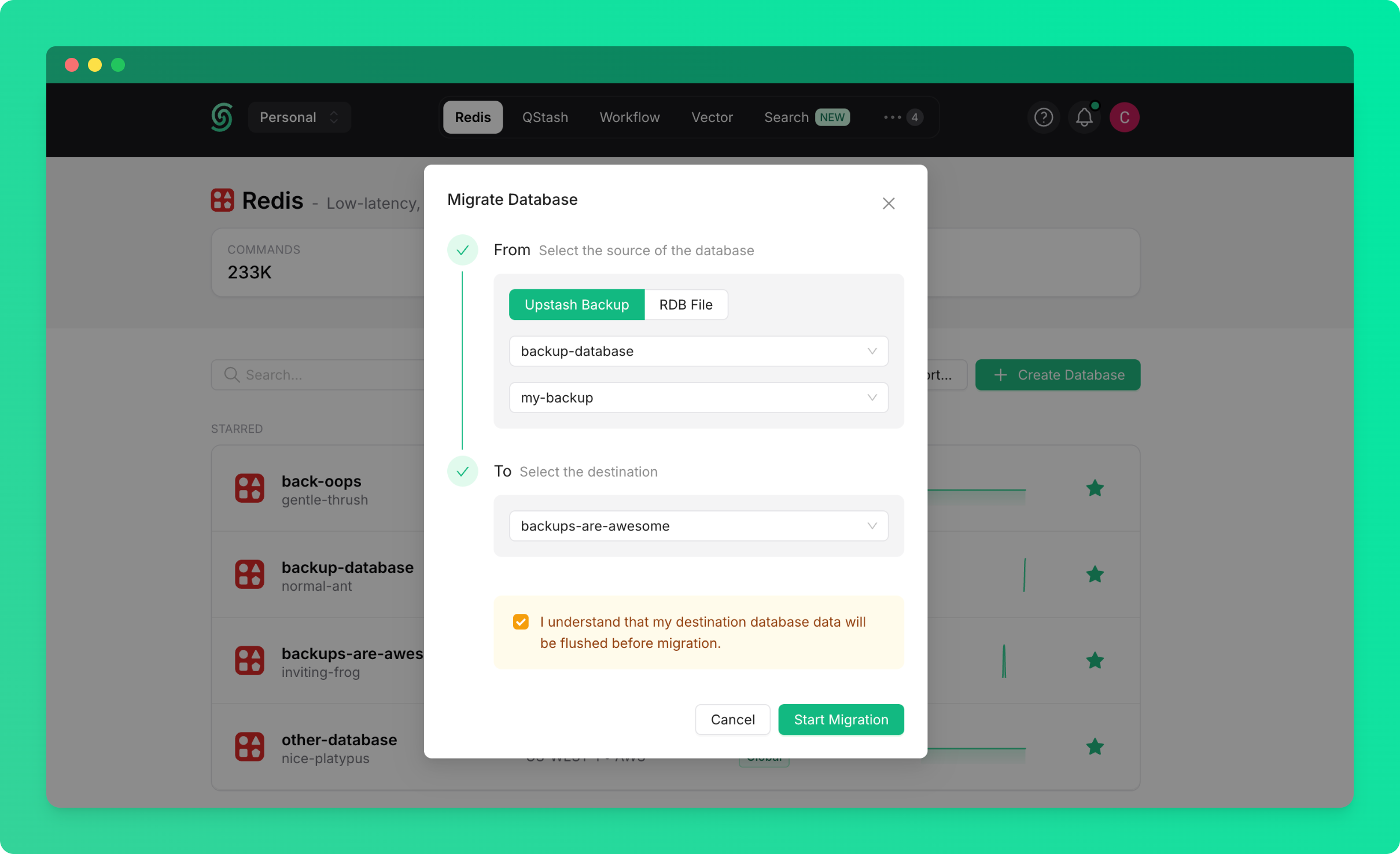
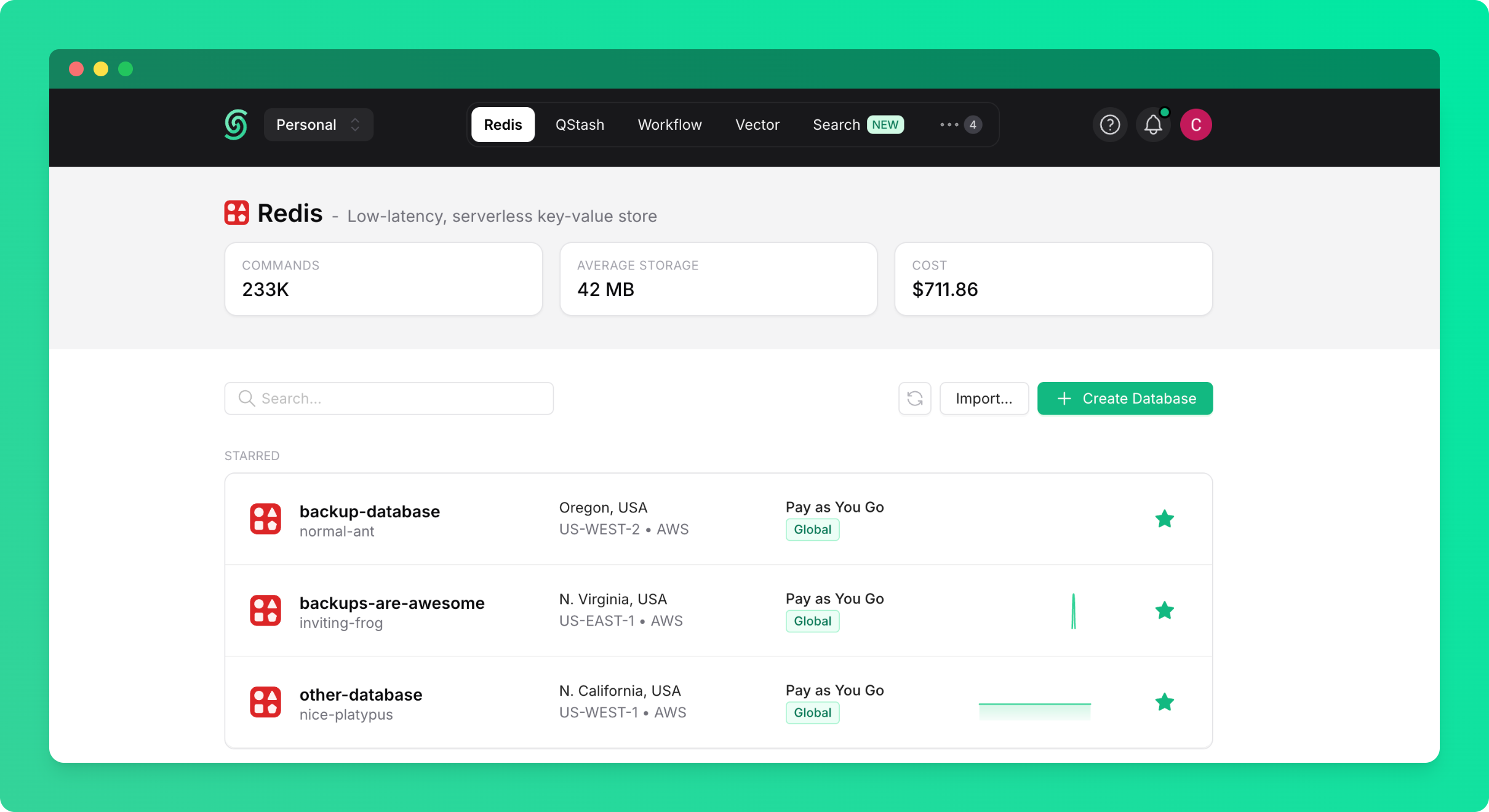 You'll see a dialog with two import options:
### Option 1: Import from Backup
Import data from a backup of any existing database in your account or team:
* Select `From Backup` as the source
* Choose the source database (the database from which the backup was created)
* Select the backup you want to import from
* Select the target database (the database you want to import into)
* Click `Start Import`
You'll see a dialog with two import options:
### Option 1: Import from Backup
Import data from a backup of any existing database in your account or team:
* Select `From Backup` as the source
* Choose the source database (the database from which the backup was created)
* Select the backup you want to import from
* Select the target database (the database you want to import into)
* Click `Start Import`
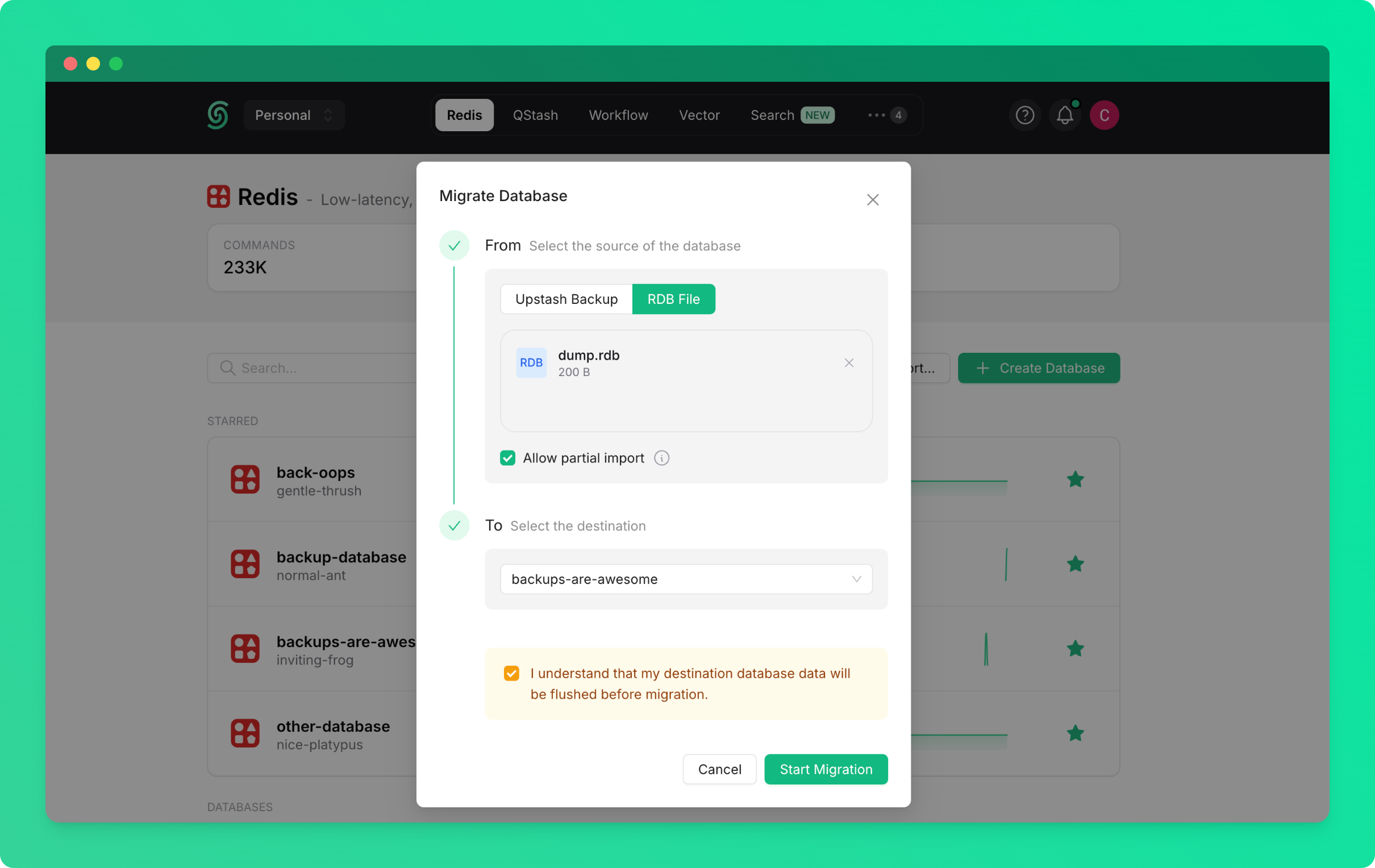
 ### Option 2: Import from RDB File
Import data from an external Redis database by uploading an RDB file:
* Select `From RDB File` as the source
* Click `Upload RDB File` and select your RDB file
* Select the target database (the database you want to import into)
* Click `Start Import`
### Option 2: Import from RDB File
Import data from an external Redis database by uploading an RDB file:
* Select `From RDB File` as the source
* Click `Upload RDB File` and select your RDB file
* Select the target database (the database you want to import into)
* Click `Start Import`
 If you're importing from an external Redis database (from another provider or on-premise), you'll need to export it as an RDB file first.
## Exporting Data
**Coming Soon**: The export feature is not yet available but will be released soon. The following documentation describes how it will work.
You'll be able to export your Upstash Redis database as an RDB file for backup or migration purposes.
### Request an Export
To export your database:
* Go to the database details page and navigate to the `Backups` tab
* Click on the `Backup & Export` button
* Choose `Export`
If you're importing from an external Redis database (from another provider or on-premise), you'll need to export it as an RDB file first.
## Exporting Data
**Coming Soon**: The export feature is not yet available but will be released soon. The following documentation describes how it will work.
You'll be able to export your Upstash Redis database as an RDB file for backup or migration purposes.
### Request an Export
To export your database:
* Go to the database details page and navigate to the `Backups` tab
* Click on the `Backup & Export` button
* Choose `Export`
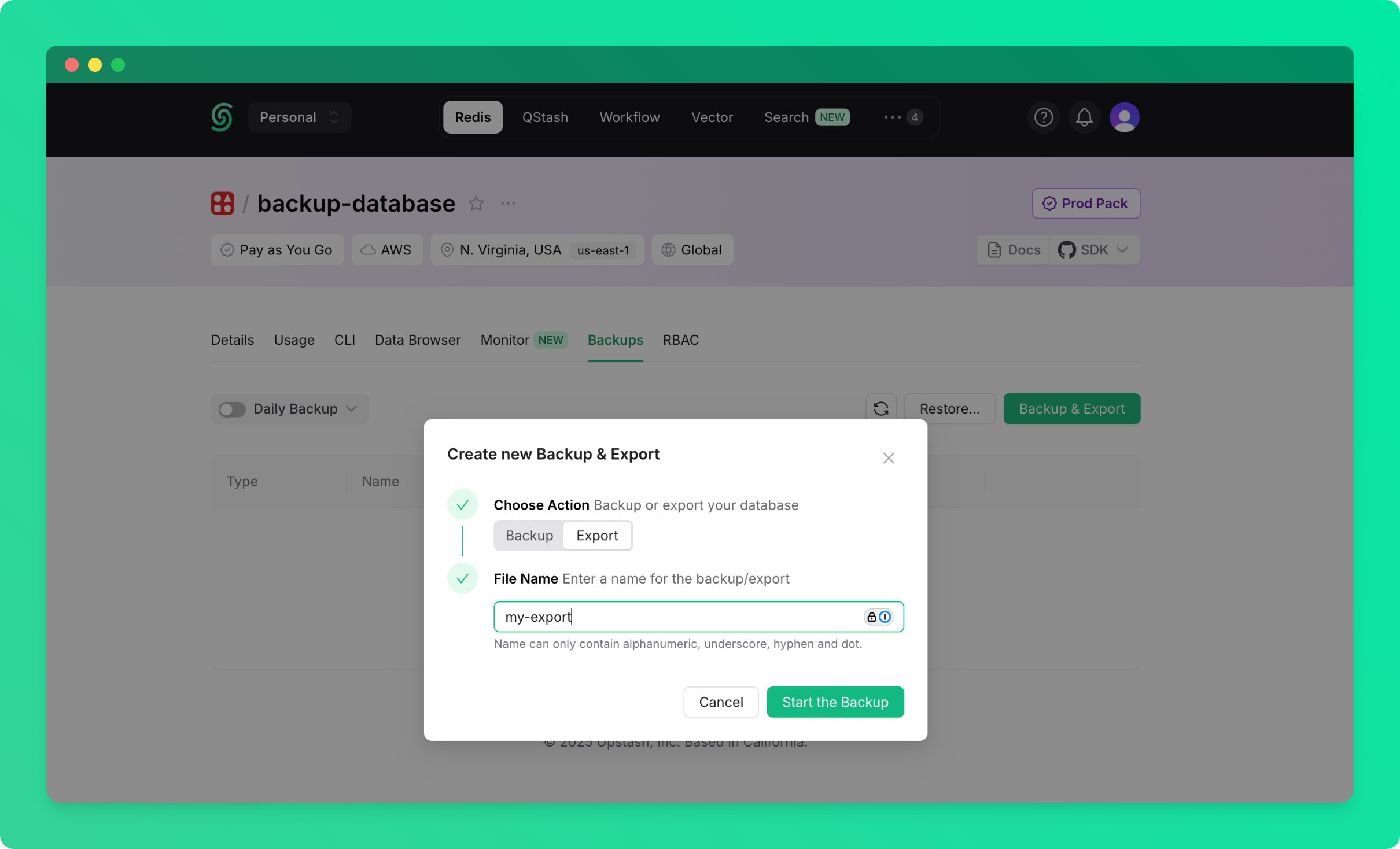 Your database will be exported as an RDB file. Once you start the export, you'll see the export progress in the backups table.
### Download Your Export
Once the export completes, you'll see a `Download` button in the backups table:
* Find your export in the backups table
* Click the `Download` button to download the RDB file
Not all Redis data structures are included in RDB exports. Notably, Redis Functions data will not be available in the export.
Your database will be exported as an RDB file. Once you start the export, you'll see the export progress in the backups table.
### Download Your Export
Once the export completes, you'll see a `Download` button in the backups table:
* Find your export in the backups table
* Click the `Download` button to download the RDB file
Not all Redis data structures are included in RDB exports. Notably, Redis Functions data will not be available in the export.